There are two types of home backup power available. Both versions turn your vehicle into a backup power source for your home, helping mitigate the effects of power outages.
If you own an F-150® Lightning® or F-150® PowerBoost™ Hybrid equipped with 7.2 kW or 9.6 Pro Power Onboard™, see the section below on Pro Power Onboard enabled essential home backup power.
If you are an F-150 Lightning owner with a Ford Charge Station Pro and Home Integration System (HIS), see the section below on Automatic Home Backup Power.
Pro Power Onboard enabled essential home backup power | Automatic Home Backup Power with the Charge Station Pro |
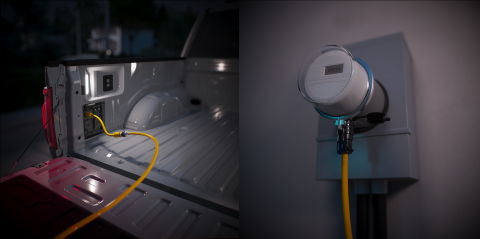 |  |
Pro Power Onboard Essential Home Backup Power Enabled by GenerLink
Ford is partnering with GenerLink to bring essential home backup power to customers with an F-150 Lightning or F-150 PowerBoost Hybrid with 7.2 kW or 9.6 kW Pro Power Onboard.
To learn more about how you can turn your truck into a power source for your home, see the Shop GenerLink page.
How do I use Pro Power Onboard* enabled essential home backup power?
Take the following steps:
- Confirm your home is experiencing a power outage.
- Go to your home's main panel and turn the main breaker and individual circuits off.
- Position your vehicle so that your GenerLok cord will be able to comfortably reach from the meter to the 240V outlet in the truck bed. Your cord should not be suspended in the air.
Align the meter side of the cord with the notch on the transfer switch and push until you hear a click.

- Attach the Ford Vehicle Connector to the GenerLok cord.
Plug the assembled cords into the 240V outlet in the truck bed.
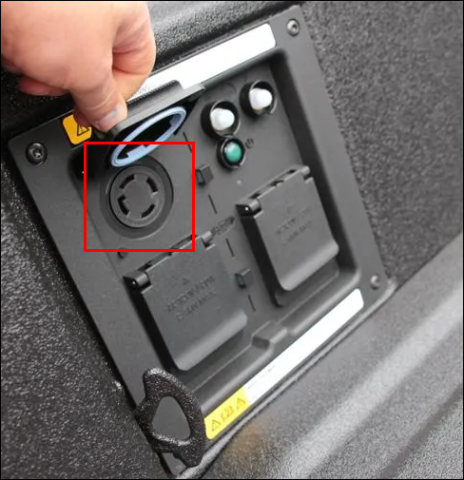
- Start your vehicle.
Important: If you are using the F-150 PowerBoost Hybrid, ensure your vehicle is in a safe, open, and well-ventilated area.
- Activate Pro Power Onboard.
- To learn more, see our Pro Power Onboard article.
- The steps are also available in your owner's manual.
- Turn the main breaker back on.
- Turn on your essential circuits.
Your home is now running on backup power. This can be confirmed by checking for the illuminated blue "alternate source" light on the GenerLink device.
You can monitor your vehicle's load in the Pro Power Onboard section of your in-vehicle touchscreen.
Important:
- Your vehicle will continue to power your home after an outage unless you turn off Pro Power Onboard.
- Once grid power is restored, immediately unplug GenerLink.
- Regularly check your fuel and battery levels to ensure you will have enough once power is restored.
What do the different colors on my GenerLink transfer switch mean?
You may encounter any of the following:
- Blue (Alternate Source): Your home is running on your vehicle's Pro Power Onboard.
- Green (Utility): Your home is running on grid power.
- Blue (Alternate Source) and Green (Utility): Grid power is available. Turn off Pro Power Onboard and disconnect your vehicle.
- Yellow (Load Limits): Your home is exceeding 30 amps (A) when grid power is present. This will not illuminate during an outage.
- Red (Fault): An abnormal condition exists and GenerLink's safety circuits were initiated. This does not indicate an unsafe condition, as it is normal for the red status light to momentarily illuminate when GenerLink cycles between alternate power source and utility power.
What if I am having trouble enabling essential home backup power?
You may be exceeding the capacity of Pro Power Onboard. Perform the following steps:
- Turn your main breaker and all individual breakers off.
- Check if the breaker panel in the truck is tripped. If it is, reset it.
- Confirm all connections between the vehicle and meter are properly secured and seated.
- The meter side of the cord is aligned with the notch on the transfer switch. Push until you hear a click.
- The vehicle end of the cord is seated in the Ford vehicle connector.
- The male end of the vehicle connector is seated in the 240V outlet in the truck bed.
- Activate Pro Power Onboard.
- To learn more, see our Pro Power Onboard article.
- The steps are also available in your owner's manual.
- Turn on your main panel.
- Turn on your essential individual breakers, one at a time.
- The vehicle is rated for 7.2kW of continuous output with a peak capacity of 9.3kW for up to 2 seconds.
- It is recommended to stagger the startup of high-draw appliances to stay within the vehicle's limits.
- Check regularly with the Pro Power Onboard screen on your in-vehicle touchscreen to ensure you do not go over the safe operating limit of Pro Power Onboard.
- If your vehicle can support additional breakers, turn on additional individual breakers.
- If you are approaching the load limit, do not turn on additional individual breakers.
If the transfer switch light is blue, no further action is required. If the meter light does not turn on, repeat the steps above and turn off additional circuits.
If the above troubleshooting does not resolve your issue, contact Ford for additional guidance.
Automatic Home Backup Power Enabled by the Sunrun Home Integration System
If your F-150 Lightning is plugged in during an outage, Home Backup Power can automatically activate to power your home. When power is restored, your truck will automatically revert to its planned charge schedule.
Note: Ford Home Backup Power is compatible with 2022–2025 F-150 Lightning vehicle models.
Select from the questions below to learn more about Home Backup Power.
Am I eligible for Ford Home Backup Power?
All trims of the F-150 Lightning are compatible with Automatic Home Backup Power. Additional purchases are required to set up and activate Home Backup Power, including the following.
- Ford Charge Station Pro
- Home Integration System available through Sunrun
- Home Backup Power Activation (F-150 Lightning Standard Range only)
How do I activate Home Backup Power for my F-150 Lightning with a standard-range battery?
To use Home Backup Power with your F-150 Lightning with a standard-range battery, you first need to activate it on the Ford app**. This requires a one-time $500 software activation fee. The payment is non-refundable, and the feature will stay with the truck, even if it is sold to a new owner.
Note: This software activation is not required for the F-150 Lightning with an extended-range battery.
Take the following steps:
- Log in to the Ford app.
- Navigate to the Vehicle screen.
- Select Connected Services.
- Tap Activate under Home Backup Power.
- Review the key features and tap Next.
- Read and accept the:
- Home Backup Power Terms and Conditions.
- Payment Terms and Conditions.
- Select Confirm Purchase.
Once the purchase is confirmed, you will see an Activation Pending tab. Tap the Manage button to set up Ford Home Backup Power.
How do I set up Ford Home Backup Power on my Charge Station Pro?
Important: Before proceeding, ensure that you have met all eligibility requirements listed in the section above and that your Charge Station Pro is set up and connected to Wi-Fi®.
Take the following steps:
Open the Ford Charge Station Pro app on your smart device to begin Home Backup Power setup.
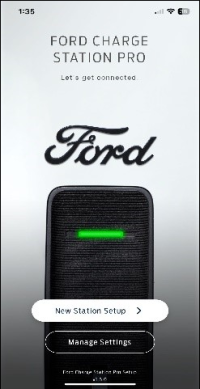
- Tap Manage Settings.
- Connect to your Ford Charge Station Pro and select Home Backup Power.
- Tap Enable.
- Plug in your vehicle at this time and select Next.
- If your vehicle is already plugged in, go to the next step.
- Review the list of requirements and select Got it on the Home Backup Power Activation screen.
- Turn on your F-150 Lightning and add your charge station to your vehicle.
- Navigate to the Home Backup Power screen located:
- On SYNC®† 4 (landscape screen) in the Features section.
- On SYNC 4A (portrait screen) in the Apps section.
- Select Add Station.
- Tap Scan on the Scan for Stations screen. A list of nearby stations will be displayed.
Note: If there is only one Ford Charge Station Pro nearby, your SYNC system will select it automatically.
- Navigate to the Home Backup Power screen located:
- Return to the Ford Charge Station Pro app on your smart device to complete setup and connect your charge station to the Ford app**.
- Select Scan.
- Confirm the PIN displayed on your smart device matches the PIN on your vehicle's screen. Tap Yes on the vehicle screen and on the Ford Charge Station Pro app.
- Select Continue on the You're Paired! screen. Your charge station's information displays on this screen.
- Tap Open the Ford app on the Almost Done screen.
- Select Connect on the Connect to the Ford app screen.
Your Home Backup Power is now set up. Tap Station Settings if you want to adjust your station's charging settings.
How do I control Home Backup Power for my Ford F-150 Lightning?
Take the following steps:
- Navigate to the Home Backup Power screen located:
- On SYNC 4† (landscape screen) in the Features section.
- On SYNC 4A (portrait screen) in the Apps section.
- Select Home Backup Power. The following displays:
- System status
- Estimated time remaining
- The Start/Stop Transfer button
- Tap the Settings button.
- Update your Home Backup Power settings.
- Select an operation mode.
- Automatic: When your system detects a power outage, it will automatically power your home.
- Manual: During an outage, you will have to turn Home Backup Power on in your vehicle.
- Move the Energy Reserve slider left or right to preserve the minimal amount of range you require to drive your vehicle.
- Select Add a New Station to add another Ford Charge Station Pro to Home Backup Power.
- Select an operation mode.
Automatic Home Backup Power Troubleshooting
Before attempting to troubleshoot, ensure the following:
- Your home and F-150 Lightning meet the requirements for Home Backup Power.
- Home Backup Power has been set up and activated.
- The vehicle's rear passenger-side corner is closest to your charger. This ensures a strong Bluetooth connection.
- The rear passenger seat is folded down to minimize obstructions between the antenna and the charger.
Plug Cycle Home Backup Power
- Turn on your F-150 Lightning.
- Unplug it from your Charge Station Pro.
- Wait at least 30 seconds.
- Plug in your truck.
Home Backup Power should now be active.
Note: You may need to repeat this process several times to trigger Home Backup Power.
Delete and Reconnect Your F-150 Lightning and Ford Charge Station Pro
Your vehicle and system may incorrectly display that your F-150 Lightning truck and backup system are communicating. Deleting and restarting the connection between your charger and truck may resolve the issue.
- Turn on your F-150 Lightning.
- Select one of the following depending on your version of SYNC†.
- SYNC 4 (landscape screen): Features
- SYNC 4A (portrait screen): Apps
- Tap on Home Backup Power.
- Select the trash icon to delete the charger.
- Pair your F-150 Lightning with your Ford Charge Station Pro.
Important: If you are attempting to pair to your system during a power outage:
- Follow the Home Backup Power Setup Instructions.
- Scroll down and select My Wi-Fi isn't working when prompted.
- Connect your phone to the Ford Charge Station Pro to complete the pairing process. The charge station's Wi-Fi network ID will start with "SWA" under the list of available networks.
Automatic Home Backup Power Frequently Asked Questions
How much power does the F-150 Lightning generate with Ford Home Backup Power? How many days can it power my home?
With the ability to offload up to 9.6 kilowatts of energy, a fully-charged F-150 Lightning can provide full-home power for up to three days††. It can last as long as 10 days if you ration that power.
Where can I use Home Backup Power?
Home Backup Power requires a Ford Charge Station Pro and Home Integration System in order to work.
You can use Home Backup Power wherever this equipment is installed and set up.
How do I get the Home Backup Power equipment I need installed at my home?
The Home Integration System must be purchased from Sunrun, our preferred installation provider.
Ford recommends Sunrun for every step, from start to finish. However, if you prefer, you may consult a local licensed electrician.
Can I do the installation myself?
We recommend the installation be done by Sunrun or a licensed electrician.
Who pays for the cost of installation?
You are responsible for home installation costs.
Visit the F-150 Lightning Backup Power page for more information.
Additional Information
What is the Ford F-150 Lightning Pro Power Onboard?
*See Owner’s Manual for important operating instructions.
**The Ford app, formerly known as the FordPass® app, compatible with select smartphone platforms, is available via a download. Message
and data rates may apply. Terms and conditions apply. Visit ford.com for our privacy notice.
†Don’t drive while distracted or while using handheld devices. Use voice-operated systems when possible. Some features may be locked out while the vehicle is in gear. Not all features are compatible with all phones.
††When home is properly equipped, and home transfer switch disconnects the home from the grid. Based on 30 kWh use per day using the F-150® Lightning® truck with the extended-range battery. Your results may vary based on energy usage. Rationing power assumes limiting the number of devices and turning the truck off when not needed.
Wi-Fi is a registered trademark of Wi-Fi Alliance®.