The Ford App
Image Details
Image Details
Unlock remote features, GPS, Roadside Assistance access, and more. Want to get started?
Remote Perks When You're Parked
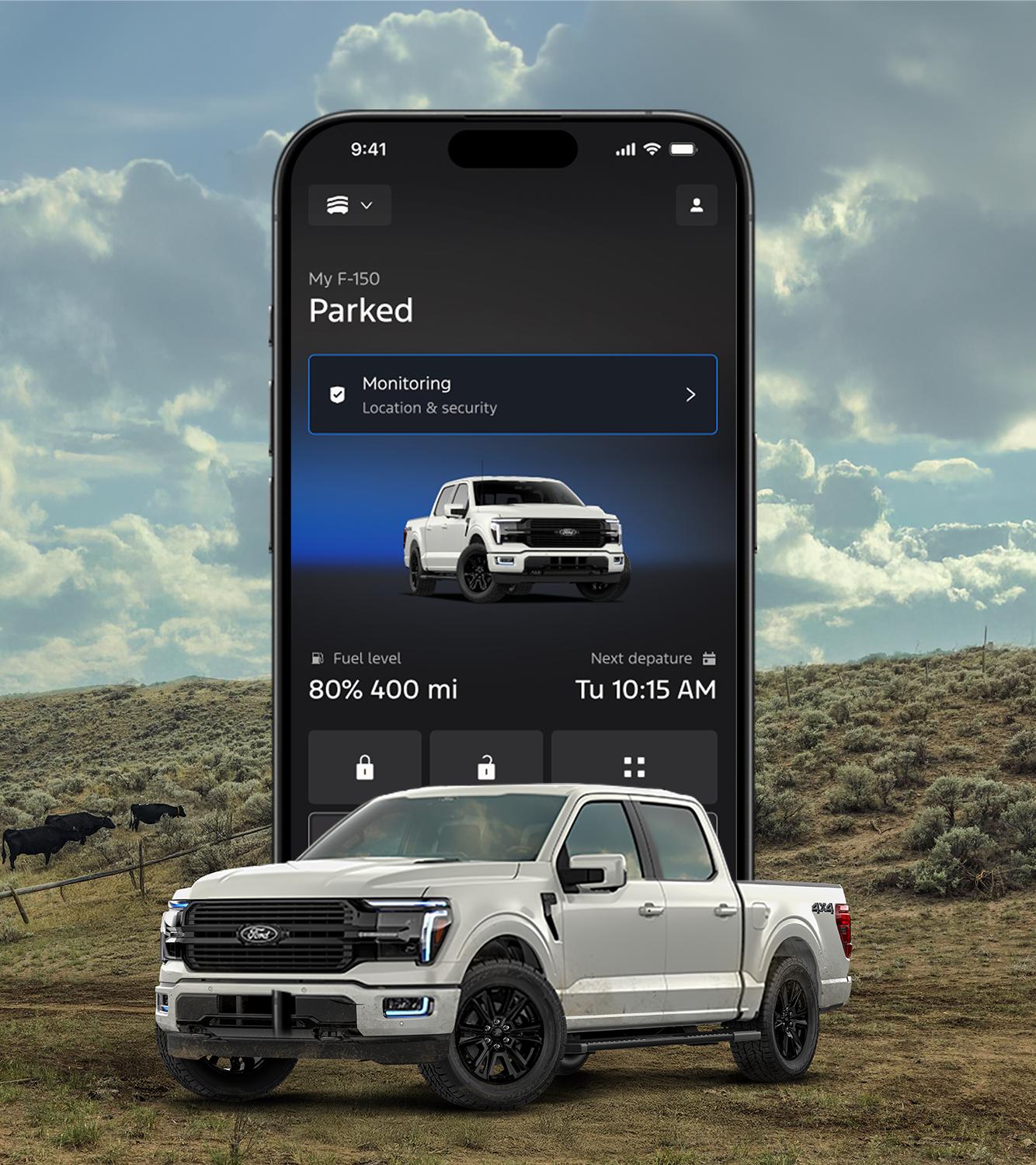
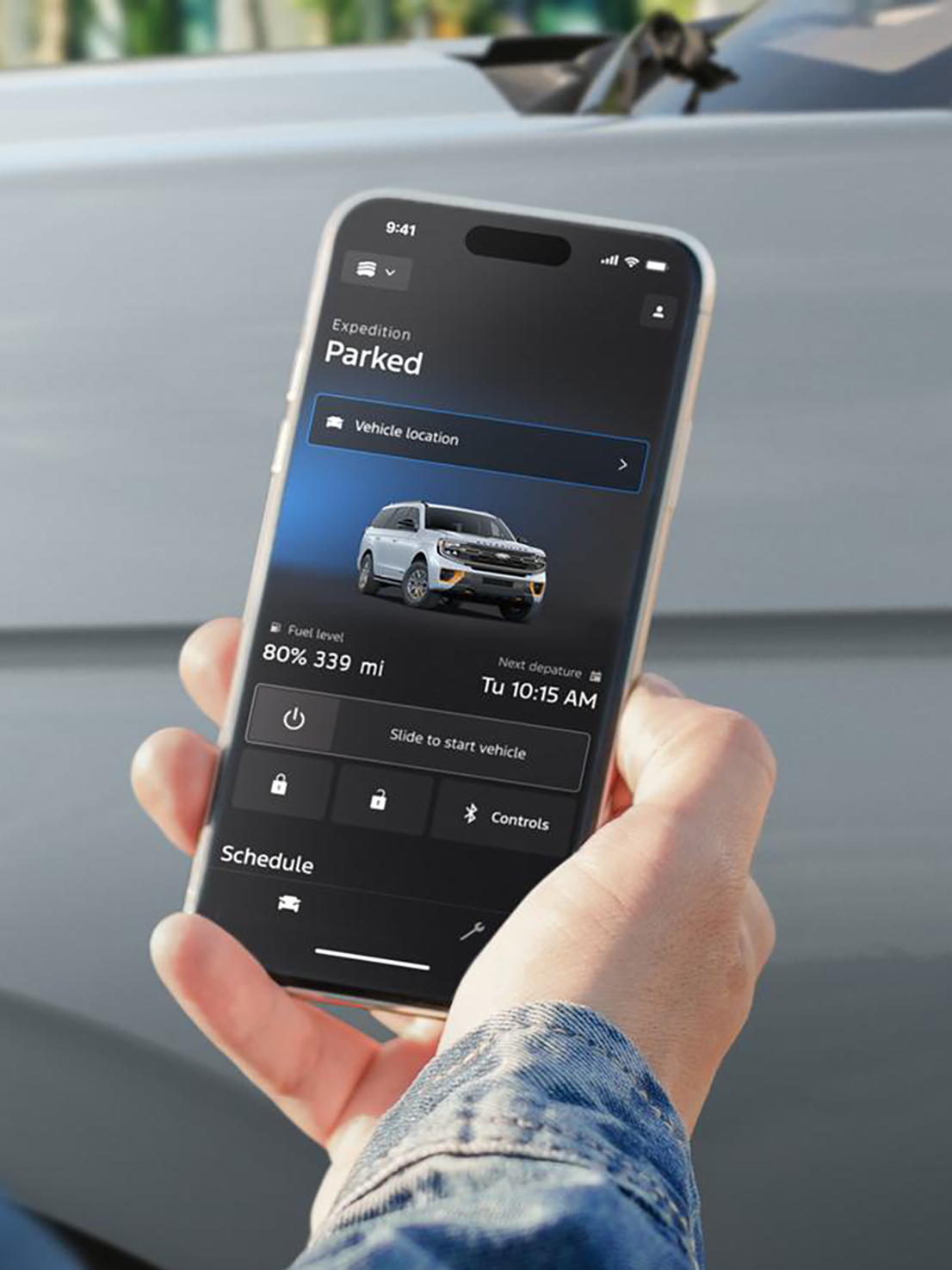
Get added control with available remote start, lock, and unlock. 196
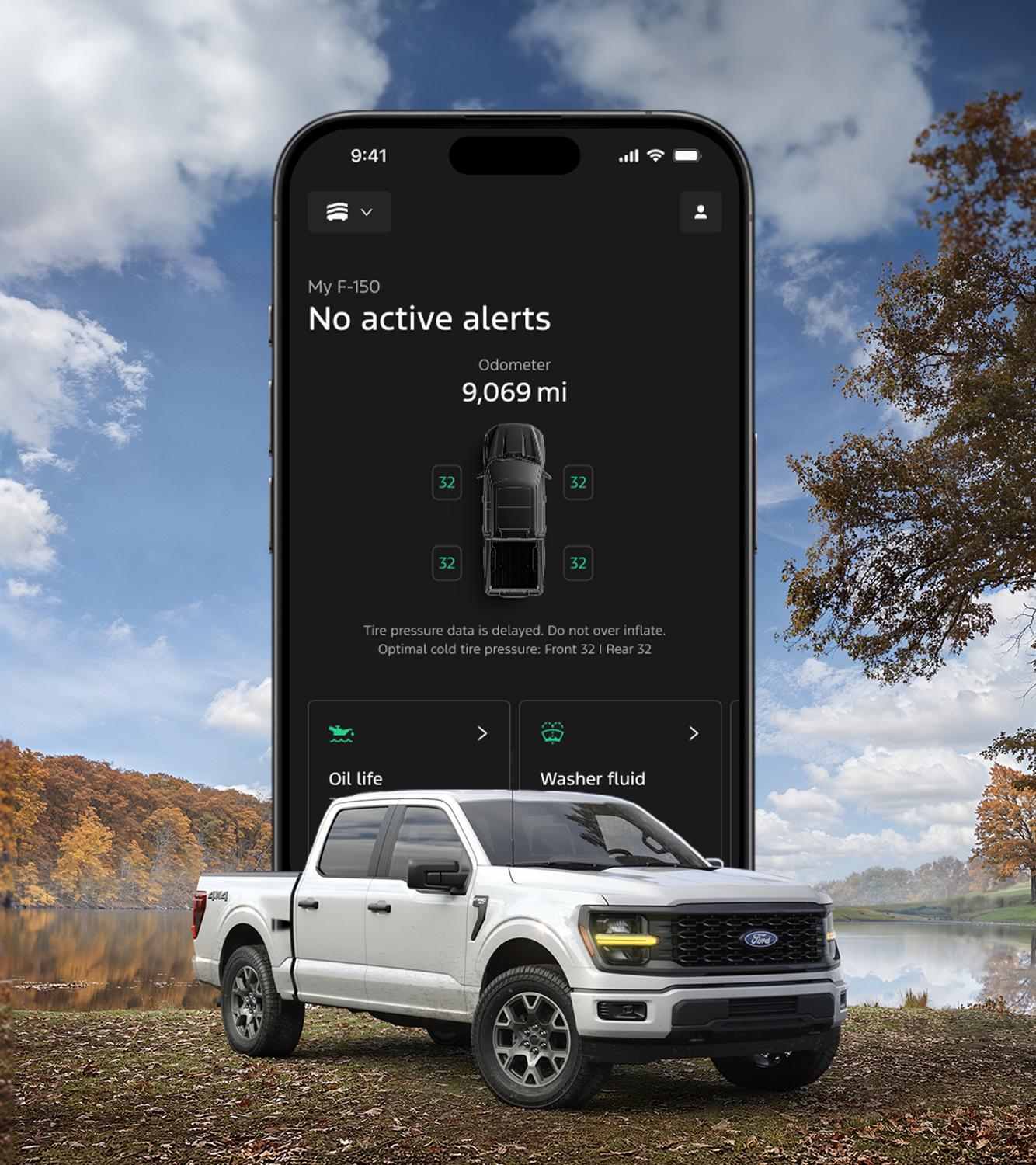
Keep track of your fuel or battery level, vehicle stats, and use your Phone As A Key, with a simple tap. 22
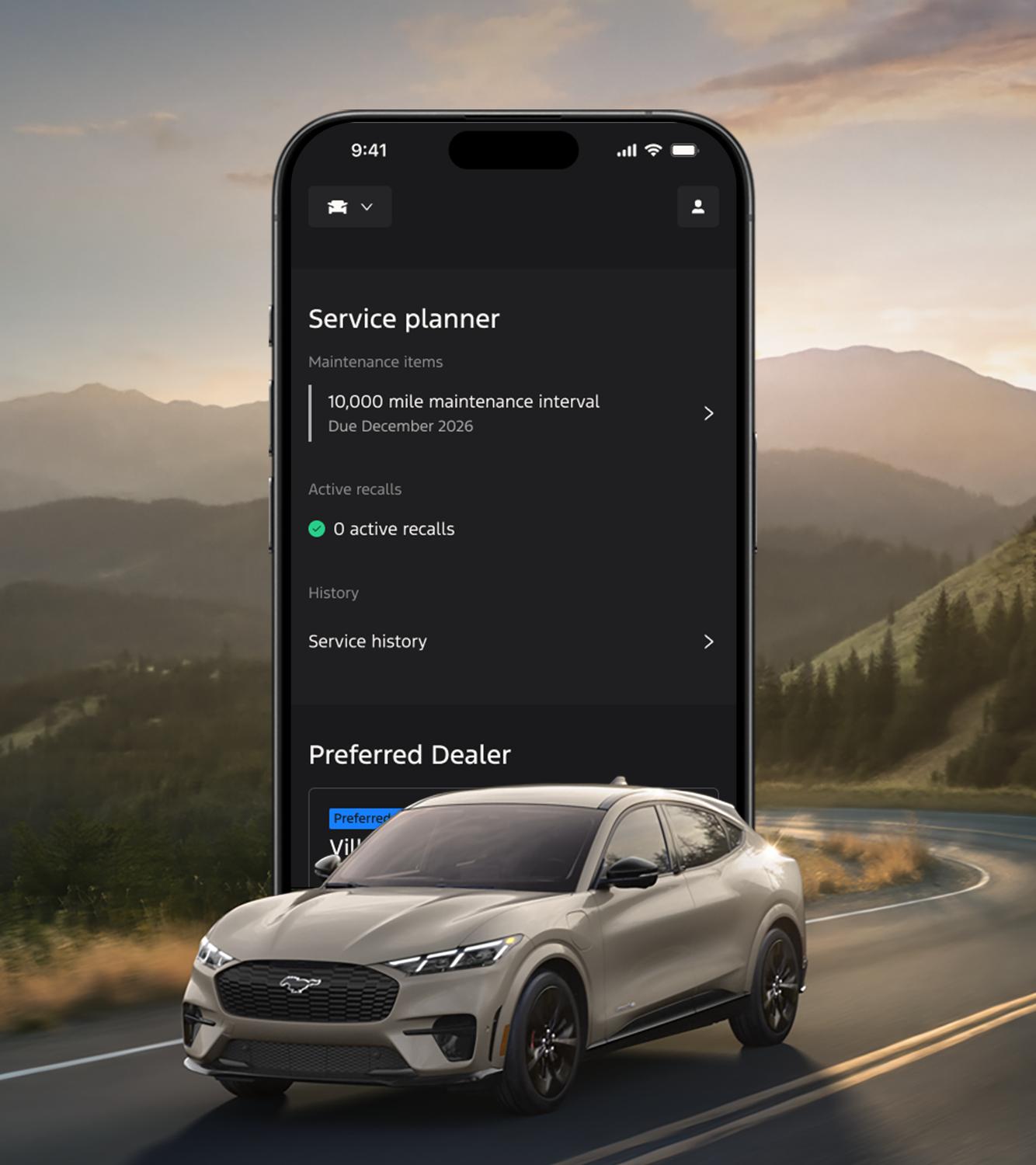
Get help staying on top of scheduled maintenance with messages and notifications, and schedule service through the app. Or right here.
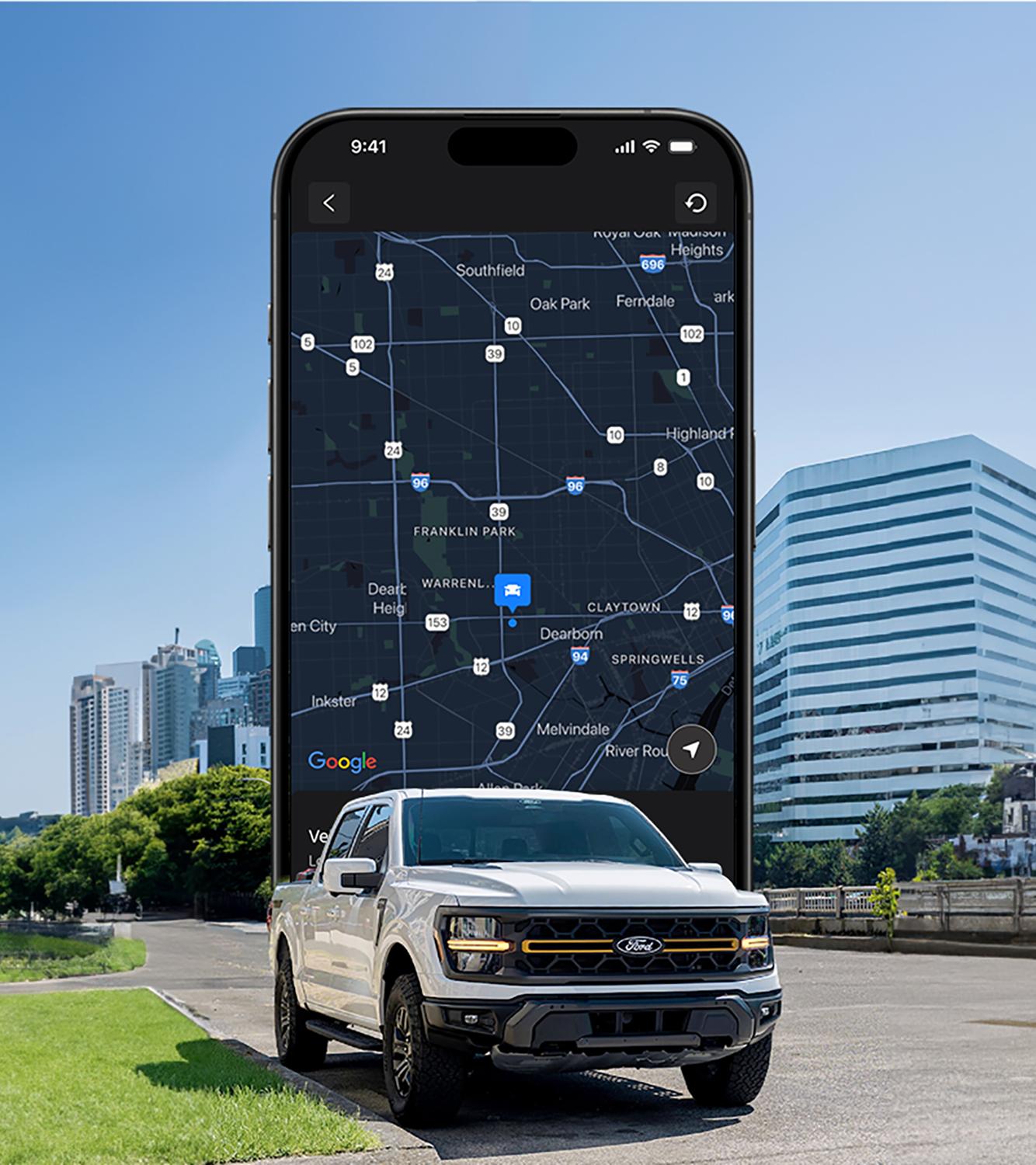
Don’t lose sight of your Ford with GPS tracking.
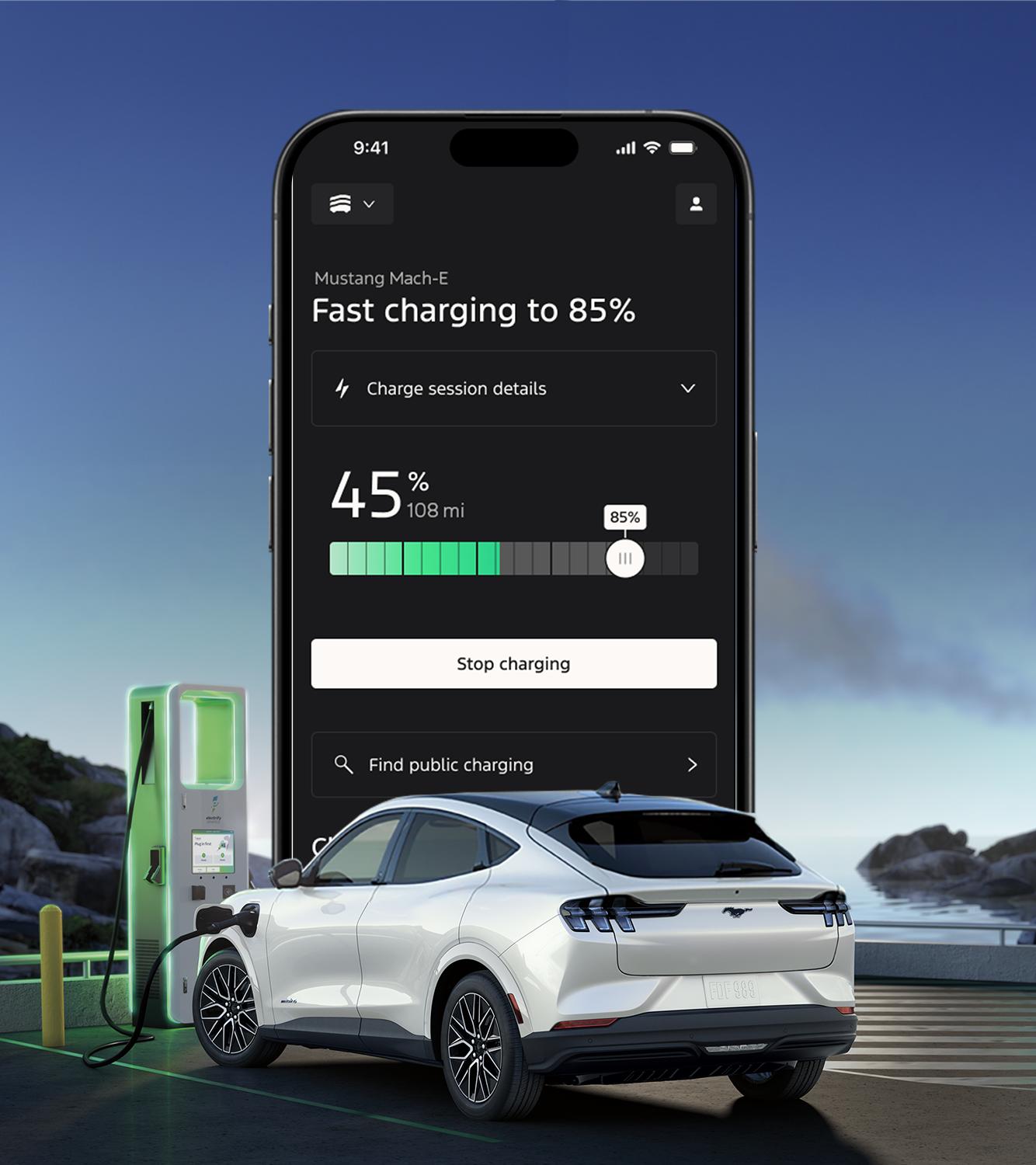
Check your charge levels, precondition your Ford EV, and pay for public charging all in the app.

There's Something Good in the Air
The Ford app 164 is everything you need to elevate your Ford ownership — all in one place. The app allows you access to remote features while on your phone at no extra cost, like remote start, lock and unlock, GPS tracking, fuel and oil stats, and much more. 196
You can also receive important alerts such as recall notifications, view your vehicle service history, access Ford Rewards, access Roadside Assistance, schedule your next service appointment with your preferred Ford Dealer through the app, access Ford Credit, and more. If you already have a Ford Account, you can log in to the Ford app using your existing Ford Account username and password.
The Ford app is free to download from the App Store® for iOS® devices or from Google Play™ for Android™ devices. To use included remote features like start, lock and unlock, and GPS tracking, your vehicle’s modem must be activated and connected to the Ford app. 164
Before you begin, the following preconditions must be met:
Connecting to the Vehicle's Modem
Important: Ensure that your vehicle is on, running, parked, and in an open, well-ventilated, and safe area.
1. Confirm your Vehicle Connectivity Settings are enabled within your vehicle
2. Open the Ford app
3. Select Connect to Vehicle
Note: If your vehicle is equipped with a modem and the Connect to Vehicle tile does not appear, contact us through Account > Contact Help.
4. Select I've Started my Vehicle
5. Read and accept the prompt on your vehicle center display
Note: It may take up to two minutes for the connection to complete.
6. Select Check Connection Status in the Ford app once you accept the in-vehicle prompt
The Ford app will route you back to the Vehicle screen, and the remote commands (if available) should appear below your vehicle image.
Yes, remote features are complimentary with the Ford app, giving you access to features like lock and unlock, vehicle status, vehicle locator, preconditioning, and electric vehicle charging features. 196
When using the Ford app remote controls, you have direct access to remotely lock, unlock, and start your vehicle. It’s important to remember your vehicle still requires the presence of a keyfob to put it in Drive (D) unless your vehicle is equipped with Phone As A Key.
Remote lock and unlock and remote start and stop are not standard features for all Ford vehicles. Your vehicle must first be added to the Ford app, equipped with SYNC® or the Ford Digital Experience, and your vehicle’s modem must be activated. Your vehicle must also be equipped with an automatic transmission and automatic locks.
Make sure you’re fully connected:
Note: We’ve generalized these instructions. For instructions specific to your smart device, be sure to check its user manual or contact your device’s manufacturer. If you use your device’s search tool and search for “location service” you might find what you’re looking for.
iOS devices
Android™ devices
Note: If you toggle Location Services off, you won’t be able to use the My Location or My Journeys features in the Ford app.
1. Make sure you’re logged in to the Ford app with the correct credentials
2. Make sure your vehicle isn’t in Deep Sleep Mode
3. Check your instrument cluster to see that Remote Start is on:
- Navigate to Settings > Vehicle > Remote Start > System
- Set Remote Start to on
4. Make sure your hood, doors, and trunk are close
5. Verify that the Check Engine Light isn’t on — check the Ford app message center for Check Engine Light notifications
6. You’ll have to resolve any Check Engine Light causes before you can use the app’s Remote Start feature
Ford provides several ways that customers can directly disconnect the Ford app’s remote access and connected services from within the vehicle. In addition, domestic violence victims can also, if they choose, submit a request to Ford to disconnect remote vehicle access by using this form.
Ways to disconnect remote vehicle access:
Note: If you are unable to perform these actions for any reason (e.g., a setting is locked), contact us at the number below.
Perform a Master/Factory Reset
Turn off Vehicle Connectivity setting
Turn off vehicle location sharing through in-vehicle settings by following instructions in your Owner’s Manual
Note: If you 1) Perform a Master/Factory Reset, 2) turn off Vehicle Connectivity setting, or 3) turn off vehicle location sharing setting, every Ford app account connected to that vehicle will receive a notification communicating that the change has occurred. For example, if a Master/Factory Reset is performed, every Ford app account connected to the vehicle will receive a notification that the account has been disconnected from the vehicle.
Also, if there are any aftermarket devices plugged into the vehicle (e.g., dash cam, other cameras or accessories), follow their specific instructions to disconnect.
See How do I disconnect remote vehicle access for more information about ways to disconnect remote vehicle access.
To obtain a new connected vehicle app account for the vehicle, download the Ford app and pair the vehicle with the app.
If you have questions regarding disconnecting vehicle access or creating a new account, you may contact us by phone. For the hearing or speech impaired: please contact the Telecommunication Relay Service by dialing 711.
Ford — United States
(800) 392-3673
M–F 8:00 a.m.–11:00 p.m. ET
Sat 8:00 a.m.–8:00 p.m. ET
Sun CLOSED
Vehicle Health Alerts provide you with information about your vehicle. When you receive a Vehicle Health Alert, open the Ford app to learn more about what is happening and what you should do.
You can update your name, address, phone number and delete your Ford Account on the Account screen of the Ford app.
To update your account information:
1. Log in to the Ford app
2. Go to the Account screen
3. Under Settings choose Account Information
4. Select Edit
5. Adjust the details as needed
6. Choose Save
7. Select the back arrow to exit the screen
If you need additional assistance, contact Ford app support using the Account > Help path in the Ford app.
1. Log in to the Ford app
2. Select the Garage icon in the top-left corner of your screen
3. Choose a vehicle by swiping left or right on your screen
4. Tap Remove Vehicle
5. Select Remove Vehicle on the pop-up message
If you experience any issues, contact Ford app support using the Account > Contact Help options in the Ford app.