How do I change lanes using Ford BlueCruise?
Depending on your vehicle's software version, BlueCruise* allows a driver to use the turn signal switch to indicate a desired lane change or perform an automatic lane change without a turn signal initiated when equipped. In all versions, you must remain alert, keep your eyes on the road, and be prepared to take over the steering.
BlueCruise is Ford’s eyes-on, hands-free highway driving technology. With new versions of software, we have added enhancements to the system to help make long trips and daily commutes easier and more enjoyable.
Even with these enhancements, it is important to remember that BlueCruise is a Level 2 driver assistance system, meaning that, as the driver, you must remain alert and actively participate and be prepared to take over and resume control at any time. As with any lane change, check your blind spots and the speed and distance from other vehicles on the road. It is not an autonomous or crash-avoidance system.
Depending on the software in your vehicle, there are several ways you can make a lane change while using BlueCruise.
Changing Lanes With BlueCruise
To learn more about the lane change feature in your vehicle, select your BlueCruise version from the drop-down options below.
You Make a Manual, Hands-On Lane Change (BlueCruise Software Version 1.0 and Newer)
BlueCruise is a collaborative driving system, meaning you can touch the wheel or make a maneuver. This means you can make a lane change manually, just as you normally would while driving, without BlueCruise. Check your blind spots and the speed and distance from other vehicles on the road. Once clear, tap the turn indicator and manually steer the vehicle into the desired lane.
This action temporarily pauses BlueCruise, so you can make the lane change. Once the vehicle is centered in the new lane, BlueCruise will resume.
You Initiate a Hands-Free Lane Change (BlueCruise Software Version 1.2 and Newer)
If you have BlueCruise 1.2 or newer and are traveling between 40–80 mph, you have the option to make an initiated hands-free highway driving lane change. To make the lane change, tap the turn indicator in the direction of the desired lane change. BlueCruise will monitor traffic conditions and make a lane change if the adjacent lane is clear. If it is not clear, BlueCruise will cancel the lane change. Always still check your blind spots and the speed and distance from other vehicles on the road.
BlueCruise is an advanced driver assistance system, and you should always be alert, engaged and ready to take over, even as the system assists with a lane change. You can also cancel a lane change at any time by tapping the turn signal in the opposite direction, or by pressing the brake, which will cancel BlueCruise.
Tip: If you lightly tap the turn indicator, your blinker will automatically turn off after the lane change is made. If you press down hard on the turn indicator, you will need to manually turn off the blinker.
Automatic Lane Change (BlueCruise 1.5)
If you have BlueCruise 1.5, your vehicle is equipped with Automatic Lane Change, which means BlueCruise can automatically make a lane change if you are following a slower-moving vehicle on the highway to keep you at your set speed or to move you out of the passing lane if you are traveling between 40–80 mph. You can always cancel a lane change by tapping the turn signal in the opposite direction or by pressing down on the steering wheel.
You can also initiate a hands-free lane change by tapping the turn signal, or make a manual lane change with your hands on the wheel.
Always still check your blind spots and the speed and distance from other vehicles on the road. BlueCruise is an available Hands-free highway driving feature, and you should always be engaged and ready to take over, even as the system assists with a lane change.
Tip: If you prefer not to use Automatic Lane Change, you can disable it in the Driver Assistance settings.
You can find more information about BlueCruise 1.5 and Automatic Lane Change on the Ford From the Road website.
Checking Which Lane Change Features You Have
Lane Change Assist and Automatic Lane Change are available on select BlueCruise vehicles. Not sure which version or features your vehicle has?
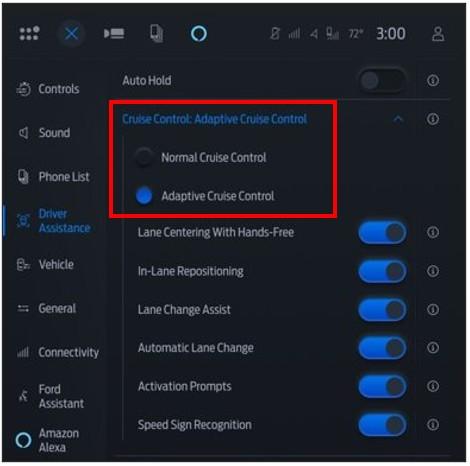
You can check which lane change features are available in your settings screen by navigating to the Driver Assistance Menu > Adaptive Cruise Control > Lane Centering with Hands-Free.
The settings will show if you have Lane Change Assist and/or Automatic Lane Change equipped on your vehicle.
You may also check the How do I know which version of BlueCruise is available for my vehicle? article to see what version is available via an over-the-air software update.
Additional Information
What is BlueCruise?
How do I use BlueCruise?
*Available feature on select vehicles. BlueCruise requires an active plan or trial — see ford.com/bluecruise for details. Terms apply. BlueCruise is a driver-assist feature and does not replace safe driving or driver’s attention, judgment or need to control the vehicle. Only remove hands in a Hands-Free Blue Zone. Always watch the road and be prepared to resume control. See Owner’s Manual for details and limitations.